
To optimize a slow Power BI report, first identify the action that is slow. A page that opens slowly, a matrix that stalls after a slicer selection, and a semantic model that refreshes for hours may have entirely different causes.
The reliable approach is to measure before changing anything: reproduce the issue, capture a baseline, isolate the expensive query or process, make one targeted change, and verify that business results remain correct. This guide covers report visuals, the semantic model, DAX, Power Query, data sources, gateways, and the Power BI service environment.
Start by defining what is slow
“Slow” is a symptom, not a diagnosis. Classifying it prevents you from tuning the wrong layer.
- Slow report open or page navigation: Check how many visuals load at once, whether the report uses DirectQuery, and whether the problem occurs only in the service.
- Slow individual visual: Investigate its query, measures, filter context, relationships, source response, and rendering work.
- Slow slicers or cross-filtering: Review the number of visuals affected, high-cardinality fields, unnecessary interactions, and DirectQuery requests.
- Slow refresh: Focus on data volume, Power Query transformations, query folding, source throughput, gateway health, and refresh resources.
A semantic model is the model behind a report: its tables, relationships, measures, storage modes, and security definitions. Microsoft formerly called it a dataset, so that term still appears in some interfaces and older documentation.
Also separate a first visit from repeat use. Record whether the delay occurs in a new browser session, after returning to the page, in Power BI Desktop, or only in the service. You do not need to explain every cache behavior before troubleshooting, but you do need a repeatable scenario that resembles the user complaint.
How to optimize a slow Power BI report with evidence first
Keep test conditions consistent before and after a change. Different slicer selections, source workload, security roles, or service sessions can otherwise look like a performance improvement.
Capture a baseline and reproduce realistic behavior
Choose a representative sequence. For example: open a Sales Overview page, select a fiscal quarter, choose a large region, and wait for the page to settle. Record the page, filters, storage mode, test location, and the slowest visual.
Test realistic filters and security conditions. A visual that is responsive for one product category may be much more expensive for all products or for a manager with access to a large portion of the model. If row-level security (RLS) applies, test an appropriate role before and after changing relationships or model design.
Desktop is useful for development, but a service-only problem can involve gateway configuration, network conditions, concurrent users, source workload, or capacity pressure. Record where the symptom occurs rather than assuming Desktop timing represents the service.
Use Power BI Performance Analyzer to isolate slow visuals
For an interactive report problem, start with Power BI Performance Analyzer. It is available in Power BI Desktop and while editing a report in the Power BI service. Start recording, reproduce the slow action, stop recording, and expand the slowest visual entries.
Depending on the visual and interaction, Performance Analyzer can show categories including DAX query, Direct query, Visual display, Other, and preview evaluated-parameter activity. Treat these as diagnostic evidence, not isolated stopwatches: reported time can include work queued on the shared user-interface thread.
- DAX query is dominant: Inspect measures, grouping fields, relationships, and filter context. Profile the copied visual query if the cause is still unclear.
- Direct query is dominant: Investigate source response, gateway conditions, network latency, and concurrent workload.
- Visual display is dominant: Test a simpler version of the visual, reducing displayed detail or optional display features one at a time.
- Other is dominant: Look for page-level contention, such as many visuals loading after one slicer change.
Performance Analyzer can copy the DAX query generated for a visual. In applicable DirectQuery scenarios, copied output can also include translated source-query information, such as SQL or KQL. The exact output depends on the connector, model, and report context. When source-query text is unavailable, use approved source tracing or database diagnostics with the source owner.
Escalate to query, gateway, or capacity diagnostics when needed
Performance Analyzer identifies where time is spent, but not every root cause. For a query-dominant visual, run the copied query in DAX Studio or another approved diagnostic environment. DAX Studio Server Timings can expose server duration, storage-engine activity, and storage-engine request count. Its availability depends on the connection and permissions; Server Timings requires server-administrator rights.
For DirectQuery, hand the evidence to the database owner. They can assess the generated query pattern, execution plan where supported, and source response under representative concurrency. For service-only problems, involve a gateway or capacity administrator. Premium and Fabric-hosted investigations can use the Fabric Capacity Metrics app when it is available to the administrator; shared capacity does not provide equivalent capacity-health monitoring.
Share diagnostics only through approved support channels. Redact credentials, tenant identifiers, personal data, and sensitive query literals before sharing report URLs, exported Performance Analyzer output, query text, or gateway logs.
A short diagnostic example
Imagine that a Sales by Customer matrix becomes slow when users select a full fiscal year. Record that interaction with the same year and region filters users select. If Performance Analyzer shows query time is dominant while visual-display time is small, changing labels or page colors is unlikely to address the main problem.
In a development copy, remove one customer-level grouping field or one measure, then rerun the same interaction. If removing a transaction-level field materially reduces the query, show customer summary by default and move transaction detail to drillthrough. If one measure drives the cost, profile it in the original filter context before changing its logic. Finally, reconcile totals, detail rows, and RLS-filtered results. The measured cause—not the fact that the visual is a matrix—determines the fix.
Fix the semantic model first
Model improvements can benefit many pages at once. Start with observable issues: unused columns, unclear filter paths, avoidable many-to-many complexity, or bidirectional relationships added only to make a visual work.
Use a clear star schema and intentional relationships
A star schema separates fact tables, which store events or transactions, from dimension tables, which contain descriptive fields used to filter and group results. Sales is a fact table; Date, Product, Customer, and Region are dimensions. This creates a more predictable filtering path for report queries. For a deeper design discussion, see Star Schema vs Snowflake Schema in Power BI.
Where business rules allow it, use active one-to-many relationships that filter from dimensions to facts. Do not enable bidirectional cross-filtering merely to solve a report-layout problem. It can be appropriate in some bridge-table or many-to-many designs, but it can also make filter propagation and results harder to reason about.
RLS normally propagates through active relationships. The separate Apply security filter in both directions property has its own security and performance implications and is not a general-purpose fix. Test totals, drill paths, and RLS behavior after any relationship-direction change.
In DirectQuery models, consider hiding one-side relationship keys when report authors do not need them. This helps discourage visuals from using key fields that may create unnecessary joins; use descriptive dimension attributes instead.
Remove unused data and reduce model weight
Import models use VertiPaq compression, but they should not load every available field. Remove tables and columns with no reporting, relationship, security, calculation, sort-by, tooltip, formatting, or refresh dependency. Hidden does not mean unused, so review measures, visuals, RLS roles, and sort settings before deleting a field.
Pay attention to cardinality, meaning the number of distinct values in a column. Unique IDs, transaction references, long text, and highly precise timestamps often have high cardinality. They can consume substantial storage and increase query or rendering cost when used in broad slicers or detailed visuals. Retain them where detail analysis is needed, but avoid making them default overview-page controls.
Choose the narrowest correct data type and remove unnecessary precision. Calculated columns are stored in the model and can add refresh work. They can be appropriate for relationships, grouping, and row-level attributes, but they are not an automatic substitute for a measure, a Power Query step, or a source-side transformation.
Choose storage mode and refresh design deliberately
Import stores data in the semantic model and is often responsive for interactive reporting when the freshness requirement and available memory permit it. Its trade-offs include refresh duration, memory use, and data latency.
DirectQuery leaves data in the source and sends queries when users interact with the report. It can suit large or near-real-time requirements, but interactive performance depends on source design, gateway and network conditions, and concurrent workload. DirectQuery does not become faster simply because data is not imported.
A composite model has multiple source groups and at least one DirectQuery source. An Import-plus-DirectQuery historical-detail design is one possible pattern, not the definition. Dual storage mode can be useful for dimensions queried with DirectQuery or Hybrid fact tables from the same source group. Validate its behavior in the actual model rather than applying it as a universal setting.
Incremental refresh partitions data so a defined recent period can be refreshed instead of reprocessing all history. It is intended for sources and designs that support efficient folding. DirectQuery and Dual tables must fold, and an Import policy without effective folding can still be slow or impractical at scale. Licensing, capacity, connector, and semantic-model configuration affect what is available, so review current Microsoft guidance before changing architecture.
Make DAX measures faster without changing the metric
DAX tuning is a profiling task, not a formula-shortening exercise. A measure can be fast in a card but slow in a matrix that evaluates it across hundreds of customer, date, and product combinations. Preserve the metric definition, then test the query the visual actually generates.
Find expensive measures and filter contexts
Start with the slow visual. List its measures, grouping fields, slicers, page filters, and drill level. In a development copy, remove one measure or grouping field at a time and rerun the same scenario. This can reveal whether the main driver is a measure, a high-grain axis, a relationship path, or the number of returned rows.
Use Server Timings where available to compare the unchanged visual query with a proposed revision. Do not call a rewrite an optimization until it returns the same results for representative filter contexts and improves measured behavior.
Use patterns that match the business grain
SUMX, DISTINCTCOUNT, time-intelligence functions, and USERELATIONSHIP are not inherently slow. Their cost depends on model shape, expression, filter context, and the number of cells the visual requests.
When a measure is expensive, ask whether the visual needs that level of detail, whether an existing additive column represents the required total, whether a row-level transformation belongs in preparation, or whether the same calculation is evaluated across an unnecessarily broad result set. Answer those questions with a trace and a result-preserving before-and-after test, not a blanket rule about a DAX function.
Variables can improve readability and may avoid repeated code, but they are not a guaranteed performance switch. Similarly, define percentages according to business meaning before considering performance. For example, margin percentage is commonly total margin divided by total sales, rather than an average of row percentages. Measure any implementation difference in your own model.
Profile complex relationship and date scenarios
Measures involving many-to-many relationships, inactive relationships, distinct counts, or date calculations deserve testing at the visual grain users need. Use a dedicated date table for time analysis and keep date relationships clear. If an inactive relationship represents a legitimate business role, retain the correct logic and validate it with real report filters instead of substituting a faster-looking but incorrect calculation.
Reduce report-page and visual-query overhead
Every visible visual can add query and rendering work. A page that attempts to answer too many questions at once may feel slow even when individual measures are reasonable.
Limit visual density
Keep visuals that support the page’s primary decision. Put supporting records on a drillthrough page, tooltip page, or focused detail page. This reduces simultaneous work while preserving access to detail.
Tables and matrices deserve particular care. Many columns, nested rows, subtotals, conditional formatting, and a large number of possible combinations can be expensive to query and render. Show a useful summary first, then let users navigate to detail.
Design slicers and interactions intentionally
High-cardinality slicers can add query and rendering cost, especially when they return many distinct values or affect a DirectQuery source. A customer name, transaction ID, or precise timestamp slicer may be justified for an operational task, but it is rarely a good default on an overview page. Consider a hierarchy, search-based selection, filtered list, or drillthrough instead.
Review visual interactions after a slicer selection. Cross-filtering every chart, card, map, and matrix can trigger a burst of work. Disable interactions that do not support a user decision. In DirectQuery reports, query-reduction options such as an Apply button for slicer or filter changes can prevent a source query for every intermediate selection.
Test custom visuals and display features
When Performance Analyzer reports high visual-display time, simplify the visual in a copy of the report and test again. Custom visuals, maps, web images, dense conditional formatting, complex tooltips, and many labels are candidates to test, not proven causes in every report. Keep a feature when its value justifies its measured cost.
Optimize Power Query and the data source for the right workload
For Import models, Power Query optimization primarily improves refresh performance, although a smaller imported model can also improve interactive use. For DirectQuery models, source query design can affect report interactions because the source is queried at report time.
Preserve query folding where supported
Query folding is Power Query’s ability to translate supported transformation steps into a query the source can execute. When folding is available, selecting columns and filtering rows at the source can reduce the data Power BI retrieves and processes.
Folding depends on the connector and the sequence of transformations. A step that folds in one query may stop folding after another step is added. View Native Query or View Data Source Query is available only when the connector and query support it. Folding indicators and query-plan features are Power Query Online capabilities in supported environments. Use these tools as evidence of where work happens, not as proof that every transformation should move upstream.
Move appropriate transformations upstream
For large relational sources, work with data engineering or database teams to filter early, expose curated tables or views, materialize reusable transformations, and support common joins, filters, and groupings with appropriate physical design. This is often particularly important for DirectQuery.
Indexes and views are not generic remedies. An index must support the joins, filters, grouping, and ordering in the queries the report actually generates. Give the database owner copied query evidence and representative filters so they can assess the real workload.
Check gateway, source latency, and concurrency
If a report is responsive in Desktop but slow in the service, investigate the environment. An on-premises data gateway can be constrained by its machine, network path, configuration, or concurrent workload. The source can also slow down when many users run interactive queries or refreshes overlap with reporting demand.
Gateway administrators can use approved monitoring, logs, and machine or network telemetry. Capacity administrators can review Fabric Capacity Metrics for eligible Premium or Fabric workloads. Give them a reproducible scenario with the page, time, filters, and timing evidence rather than a general statement that the report feels slow.
Validate improvements and prioritize the next fix
Repeat the baseline scenario after each change. Compare the timing category that prompted the change, not just total elapsed time. A model change might improve visual-query time while adding refresh work. A query-reduction control might lower source load while adding an extra user action. Those can be reasonable trade-offs when they are explicit.
Then reconcile the business result. Check totals, representative detail rows, time comparisons, drillthrough behavior, and security-filtered views. Test in the Power BI service when the original problem happened there. Document the change, measured outcome, and any remaining risk.
A practical optimization checklist
- Classify and baseline: Define whether the problem is report open, navigation, one visual, an interaction, or refresh. Reproduce it with realistic filters in Desktop and, where relevant, the service.
- Isolate one bottleneck: Use Performance Analyzer to identify the slowest visual and dominant timing category.
- Take low-risk actions: Reduce low-value page density, remove unnecessary interactions, remove genuinely unused fields, and confirm clear filter paths.
- Profile the measured query path: For query-dominant visuals, inspect measures, grouping fields, relationships, and traces. For DirectQuery, examine source-query evidence and source response.
- Escalate environmental constraints: Involve gateway, database, or capacity owners when evidence points outside the report author’s control.
- Validate before publishing: Compare the same scenario, confirm results and RLS behavior, and record refresh or usability trade-offs.
For a deeper guide to model architecture, see Power BI Semantic Model Best Practices: Star Schema, DAX, and Performance.
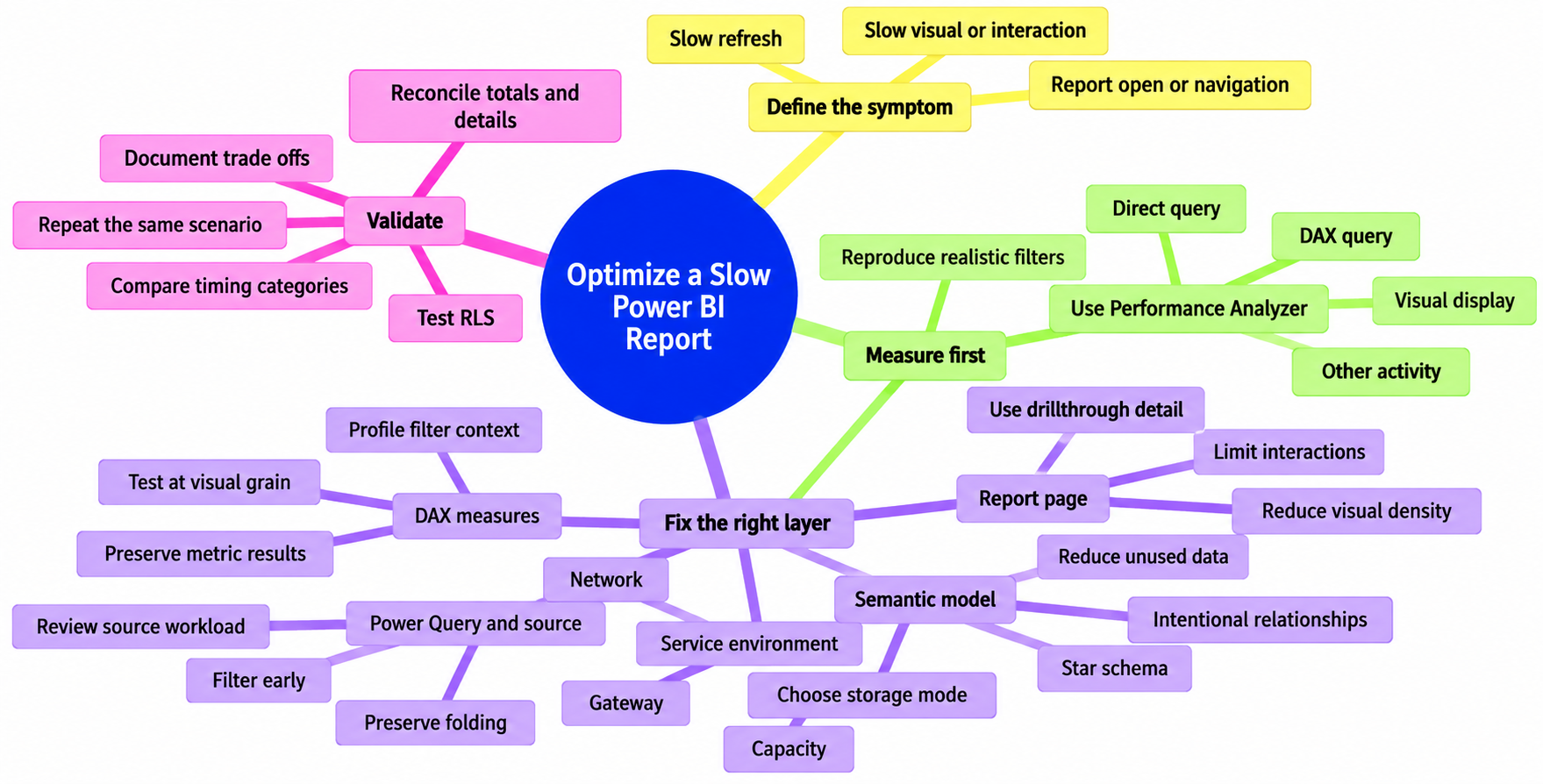
How to Optimize a Slow Power BI Report
Frequently Asked Questions About Power BI Report Performance
What should I check first when a Power BI report is slow?
Define the slow action first: report opening, page navigation, an individual visual, slicer interaction, or refresh. Reproduce it with realistic filters, capture a baseline, and use Power BI Performance Analyzer to identify the dominant timing category.
How does Power BI Performance Analyzer help troubleshoot a slow visual?
It records report activity and can show whether time is concentrated in the DAX query, DirectQuery, visual display, or other work. The dominant category helps determine whether to investigate measures and relationships, the source and gateway, visual complexity, or page-level contention.
How can I optimize a Power BI model for better report performance?
Use a clear star schema with fact and dimension tables, intentional active relationships, and limited bidirectional filtering. Remove genuinely unused columns and tables, reduce unnecessary precision and high-cardinality fields, and choose Import, DirectQuery, or composite designs according to the workload.
Is a slow Power BI report always caused by DAX?
No. The bottleneck may be a visual query, semantic model, report-page design, Power Query transformation, data source, gateway, network, or capacity. Profile the slow interaction before rewriting a measure.
How can I improve Power BI DAX performance safely?
Identify the expensive measure and the filter context in the slow visual, then test one change at a time. Use query traces or a before-and-after comparison, and confirm that totals, detail rows, time calculations, and security-filtered results remain correct.
What is query folding and why does it matter for Power BI refresh?
Query folding allows supported Power Query transformations to be translated into work performed by the data source. Filtering and selecting columns at the source can reduce the data Power BI retrieves and processes. Folding depends on the connector and transformation sequence, so verify it in the applicable environment.
What should I do if Power BI Desktop is fast but the service is slow?
Investigate service-specific conditions such as gateway health, network latency, source workload, concurrent users, and capacity pressure. Provide administrators with a reproducible page, time, filter selection, and Performance Analyzer evidence, and use approved channels when sharing diagnostic artifacts.
Sources
- Microsoft Learn: Use Performance Analyzer to examine report performance
- Microsoft Learn: Optimization guide for Power BI
- Microsoft Learn: Understand star schema and the importance for Power BI
- Microsoft Learn: Data reduction techniques for Import modeling
- Microsoft Learn: DirectQuery model guidance in Power BI Desktop
- Microsoft Learn: Composite model guidance in Power BI Desktop
- Microsoft Learn: Configure incremental refresh and real-time data
- Microsoft Learn: Query folding guidance in Power BI Desktop
- Microsoft Learn: Row-level security guidance for Power BI
- Microsoft Learn: Troubleshoot report performance in Power BI
- DAX Studio: Server Timings trace
- Microsoft Learn: Power BI implementation planning for data gateways